Used by 8,000+ creators
Cursor Box Select Animation
A cursor drags a selection box around your words, like someone highlighting them live on screen. Plus a toggle switch and a typing code block, free 1080p MP4.
Free, no sign-up
By Sumit DeyUpdated
What is the Cursor Box Select?
A cursor box select animation shows a mouse pointer dragging a selection rectangle around a word or a line, the way you would select something in a design app. It points the viewer at exactly the words you mean.
How it works
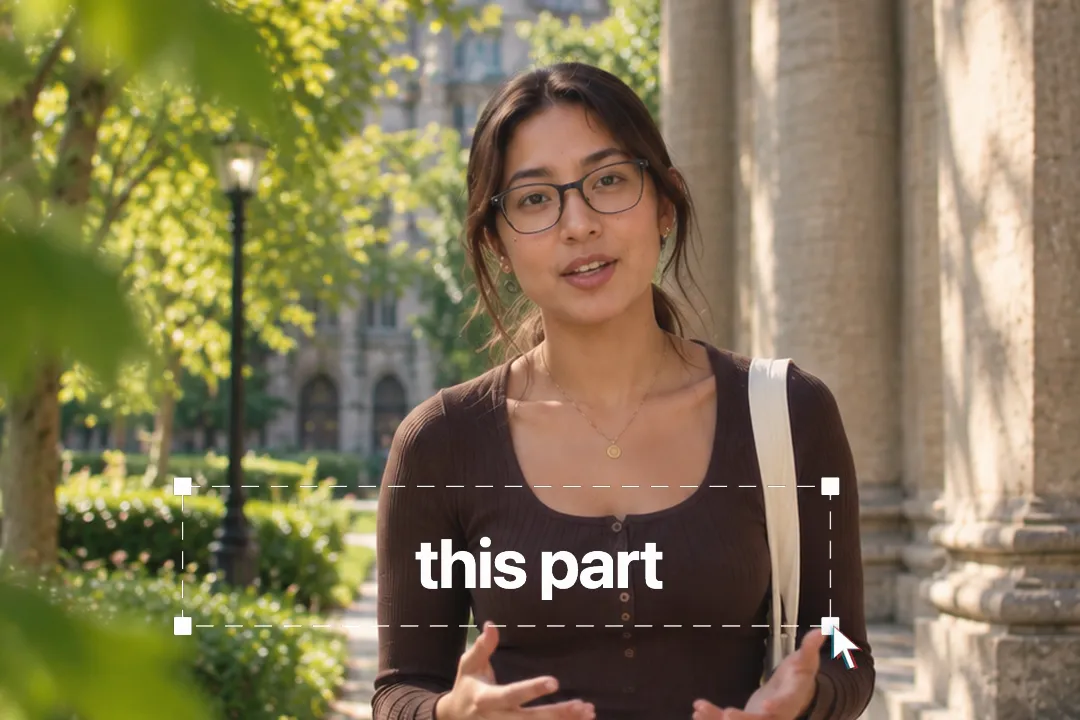
Your text appears, then a cursor moves in and drags a selection box open around it, handles and all, before the box holds. You set the text, its size and weight, the colours of the text, box and handles, and how long the drag takes.
Made for
- Highlighting a key phrase in a hook
- Product and software demo videos
- Design and creator tool tutorials
- Brand name and tagline reveals
- Thumbnails come to life in an intro
Cursor Box Select in three steps
Step 01
Pick the cursor, toggle or code block
A selection box to point at words, a switch to show something turning on, a code block to show code typing out.
Step 02
Type your text and set the colours
Enter the words, labels or code, then the text, accent and background colours to match your brand.
Step 03
Export the MP4
Pick 9:16, 16:9 or 1:1 and download a 1080p MP4 with no sign-up and no watermark.
Three interface animations for demos
 Open in the editor
Cursor box select
A cursor drags a selection box with handles around your text, like a live highlight.
 Open in the editor
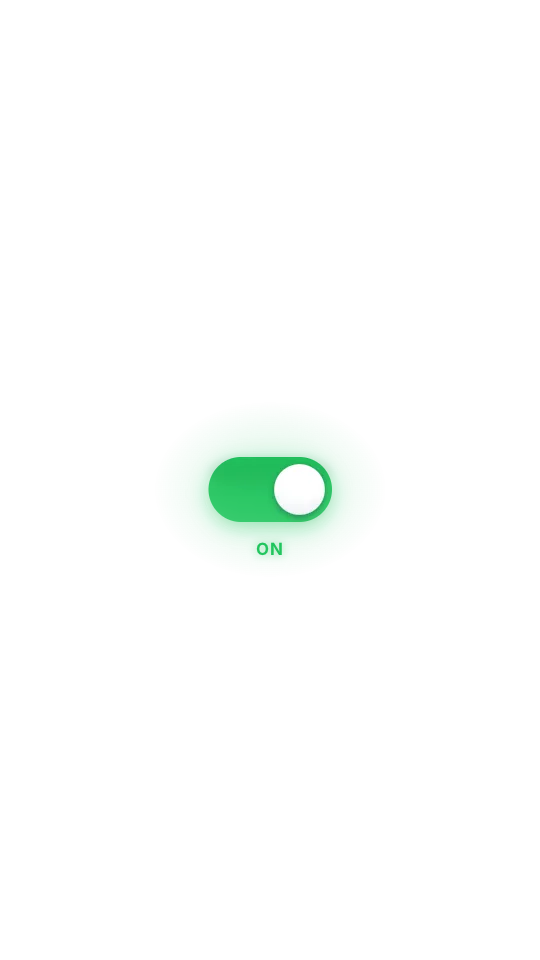
Glow toggle
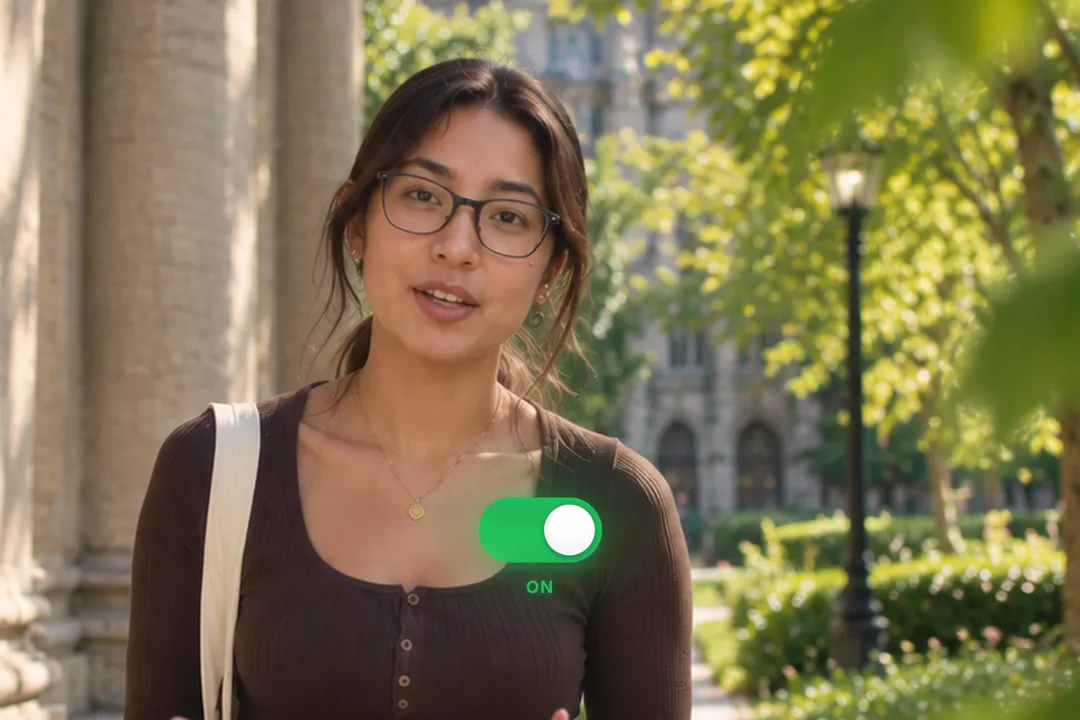
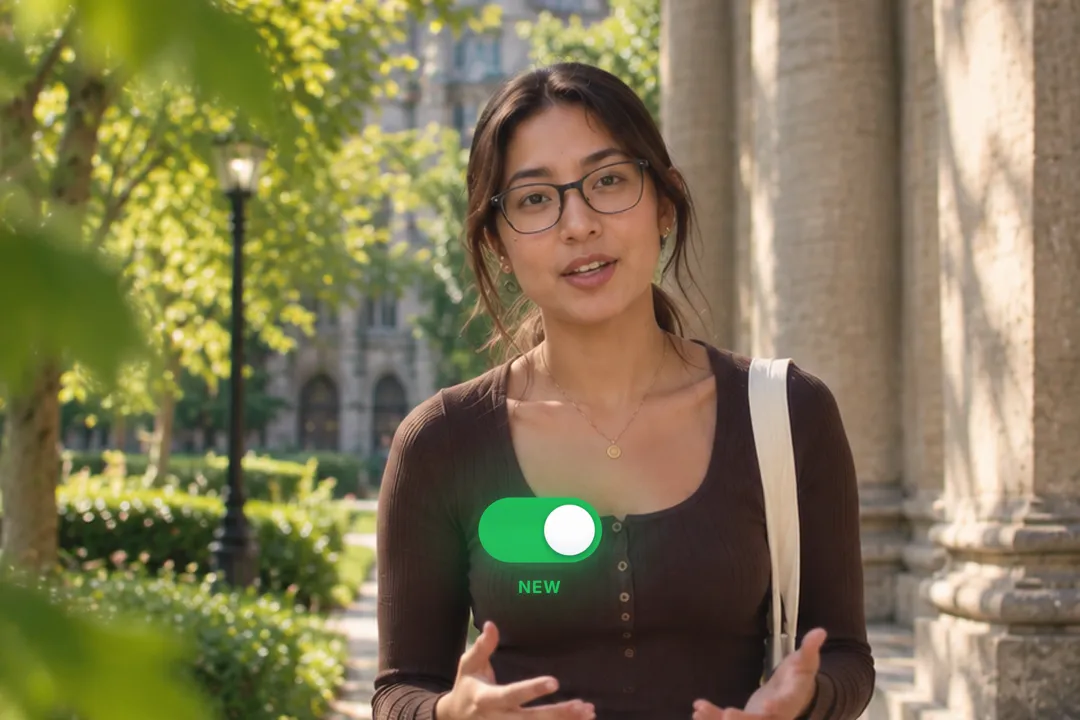
A switch flips from off to on with a squash of the knob and a bloom of glow behind it.
 Open in the editor
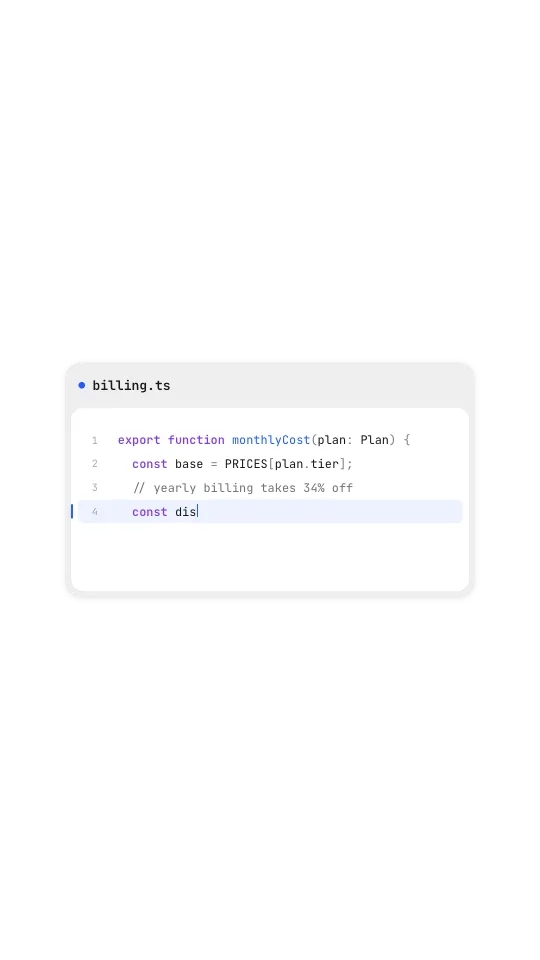
Code block
A code widget with a file name, lines typing out one by one and a highlighted line.
Why a selection box draws the eye
People who use design apps read a selection box as this thing, right here. Borrowing that signal points viewers at your words without an arrow.
- 1
It reads as intent
A cursor dragging a box looks like a person choosing something, which makes the selected words feel important.
- 2
It works without sound
Muted viewers still see exactly which words matter, because the box frames them while the cursor holds still.
- 3
It feels native to tech content
For software, design and creator audiences, interface motion looks like their own screen, not a stock effect.
- 4
It frames without covering
Unlike an arrow or a circle drawn over footage, the box sits around the words, so nothing about the text itself is hidden.
A toggle switch for before and after moments
A switch flipping on is the simplest way to show a change: off, then on. The glow toggle makes that moment satisfying.
- 1
Show a feature turning on
Flip the switch as you mention the feature. Viewers understand enabled without reading a word.
- 2
Relabel it for any choice
Change off and on to words like old and new, or manual and auto, to show a before and after.
- 3
Run it in reverse
Set it to flip from on to off for moments like turning off notifications or cancelling a habit.
- 4
Pair it with a voice line
Flip the switch exactly as you say the change, such as and now it does it for you, so sound and motion land together.
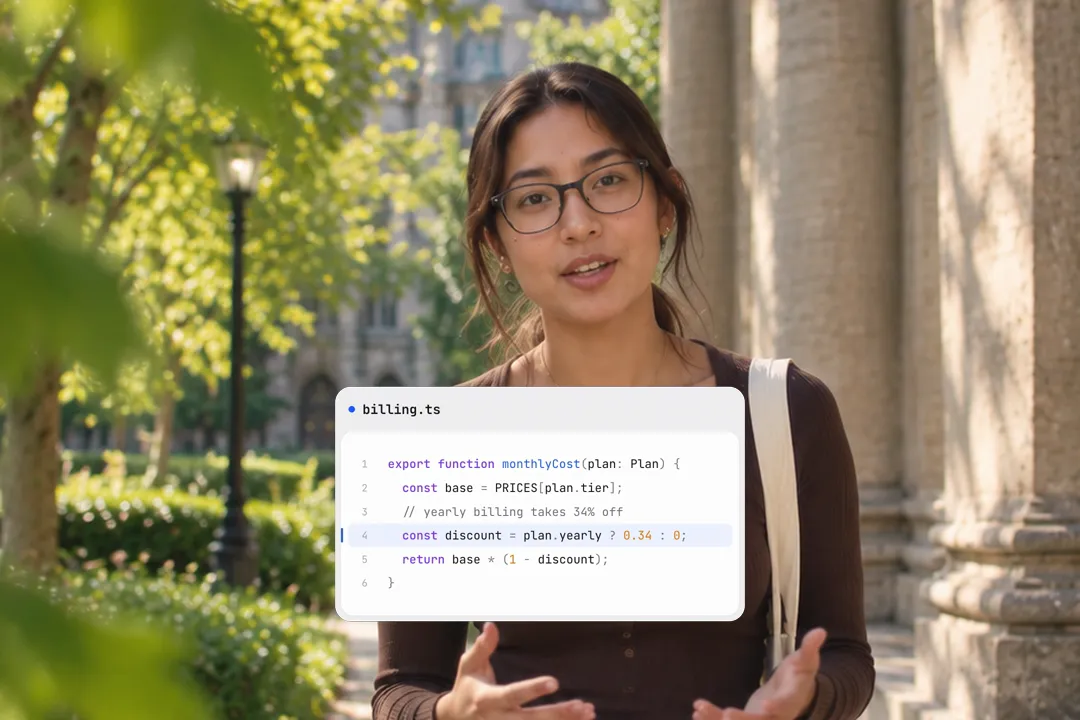
A typing code block for developer content
Developer videos need code on screen, and screen recordings of an editor rarely look good at phone size.
- 1
Lines type out one by one
Each line appears in order, so the viewer reads the code at the pace you explain it.
- 2
Highlight the line that matters
Pick one line to highlight, such as the fix or the key call, so the eye goes straight to it.
- 3
A file name sets the context
The header shows a file name like billing.ts, which tells viewers where the code lives before they read it.
- 4
Keep snippets short
Five to ten lines read at phone size. Trim imports and boilerplate so the highlighted line is the obvious focus.
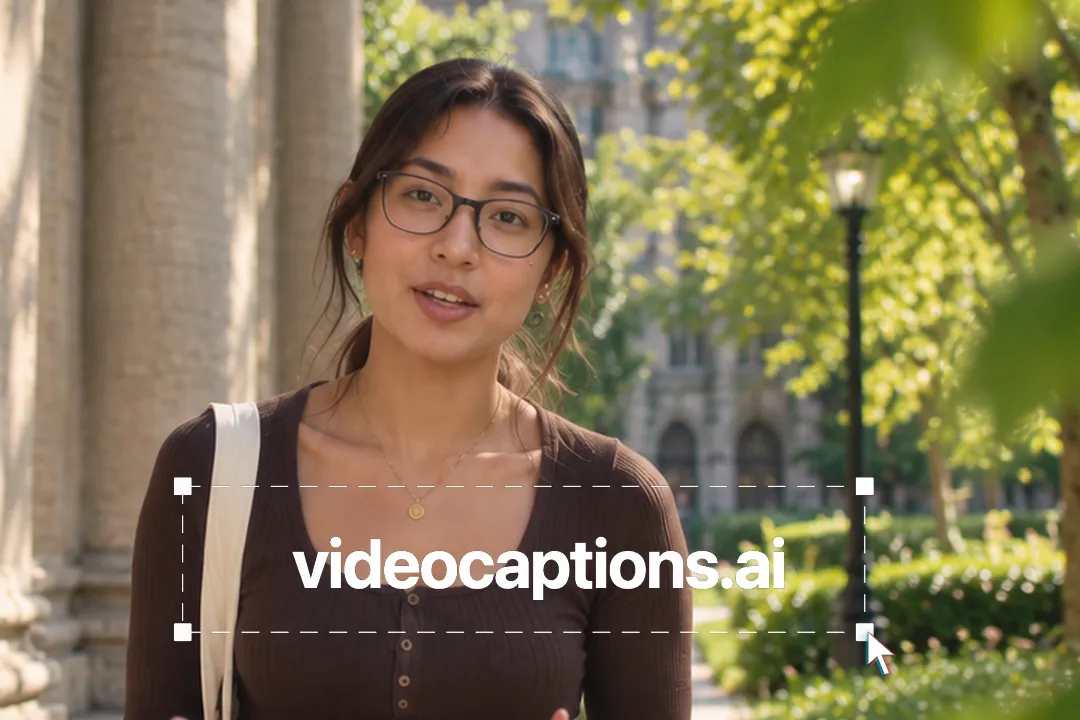
Getting the selection box right
A few settings decide whether the selection looks deliberate or clumsy. Get these right and the box reads as a confident highlight.
- 1
Keep the text short
One word or a short phrase fits the box best. A whole sentence makes the box too wide to read as a selection.
- 2
Contrast the box and the text
A light box and handles over dark text, or the reverse, keeps the selection visible on any background.
- 3
Time the drag to your voice
Set the drag length so the box closes as you say the selected word, which ties the visual to the sentence.
Best Platforms for Cursor Box Select
- 1
TikTok
A cursor selecting a word is instantly readable as this is the important part. It works as a hook before you say anything.
- 2
YouTube
Tech and design channels use selection boxes to point at ideas. It feels native to people who spend their day in software.
- 3
LinkedIn
Product launches and SaaS demos look at home with interface motion. A selection, a toggle and a code block cover most demos.
Cursor Box Select, answered
Is the cursor animation free?
Yes. The cursor box select, the toggle and the code block all run in your browser and export a 1080p MP4 with no sign-up and no watermark. Make one for each word you want to point at.
Can I select a longer sentence?
You can, but one word or a short phrase works best. The box sizes to your text, and long sentences make it wide and shallow, which reads less like a selection.
Can I change the cursor and box colours?
Yes. The text colour, the box stroke colour and the handle colour are all separate settings, along with the background behind them. Set them to match your brand or your thumbnail palette.
Can the toggle switch say something other than on and off?
Yes. Both labels are text you type, so the switch can read old and new, manual and auto, or anything else short. Keep both labels short so the switch stays compact and readable on a phone.
Does the code block support syntax highlighting?
The code block types your code line by line in a clean widget and highlights one line you choose. Paste any language; it shows the text exactly as written. Keep snippets short for phone screens.
Can I use these in a product demo?
Yes. Export each one as its own clip and cut them into your demo between screen recordings, or place them over footage in the VideoCaptions.AI caption editor. Each clip takes seconds to make.
More free motion elements
Caption styles, platforms and tools
From the blog
How Video Captions Increase Watch Time by 40% (2026 Data)
The data is clear: videos with captions get more views, higher watch time, and better algorithmic reach. Here is what the research shows, why it works, and how animated captions outperform static ones.
Animated Captions for Faceless Video: Styles That Hold Attention
On a faceless video the captions are not a subtitle track. They are the performance, the emphasis, and the only brand asset that appears in every single frame. Here is how to choose and apply them.
Faceless Reels and TikToks: A Format Guide That Actually Names the Caption Style
Short-form is where faceless content is won or lost, and it is also where the safe zones, the mute default, and the three-second judgement are least forgiving. Here is the format-by-format breakdown.
Create a Free Cursor Box Select Motion Element
Free, no sign-up